Filtering and sorting
Filtering
Tables allow filtering data based on various conditions. Clicking the filter icon in the column header opens the filter panel, where the desired value or range can be set. After setting the filter conditions, click the Apply button to activate filtering. To remove a filter from a column, click the Clear button in the corresponding filter panel.
The filter panel varies depending on the column content:
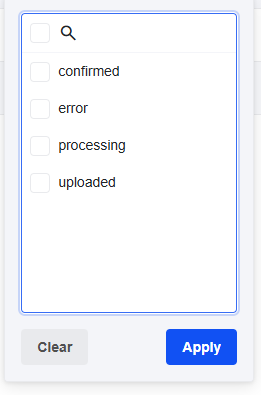
- List filter: displays values found in the column. Filtering is done by checking the desired item(s). A search field at the top helps to locate values.
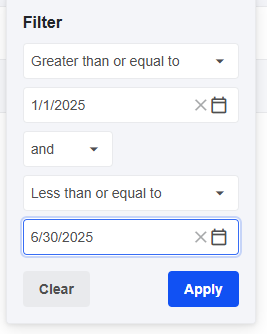
- General (complex) filter: allows setting advanced conditions using AND/OR logic. Available filter types and default settings vary by column. After selecting the filter type, enter the required value (or choose from a calendar for dates). Additional conditions can be added using AND/OR logic.
Sorting
Column headers display a symbol next to the column name indicating the sort order. A column can be unsorted, sorted in ascending, or descending order. The symbols mean:
 Unsorted: appears only when hovering over the column header. Clicking it sorts the column in ascending order.
 Ascending: click to switch to descending.
 Descending: click to remove sorting.
Tables can be sorted by multiple columns. To do this, go through the desired columns in order and set the sort direction accordingly. On desktop, hold the Shift key while selecting additional columns for sorting. A number next to the sort symbol indicates the column’s sort priority.
Note: In some tables, filtering and sorting may not be available.