Column management
Rearranging column order (desktop view)
To rearrange columns, drag the header using the handle on the left side. This allows data to be displayed in a logical or visually preferred order. (In some tables, this option may not be available.)
Adjusting column width (desktop view)
Column width can be modified by dragging the edge of the column header left or right. The cursor changes to a horizontal arrow. (In some tables, this option may not be available.)
Column visibility
Using the column filter panel at the top of the table (on mobile, accessible via the  filter list icon), users can choose which columns to show or hide. Mandatory columns do not appear in the list and cannot be made hidden.
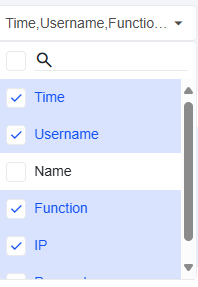
This feature is especially useful when the data source contains many columns, but only a few are relevant for the workflow. By default, only the most important columns are shown.